What Presto AI Dash does
Presto AI Dash answers a handful of questions about your AI accounts without opening a browser tab:
- Is anything close to a limit right now?
- When does the next window reset?
- Is my local model server up, and which model is loaded?
- How much have I used today, and how fast is it answering?
- Is anything broken, and if so, what exactly?
What it looks like
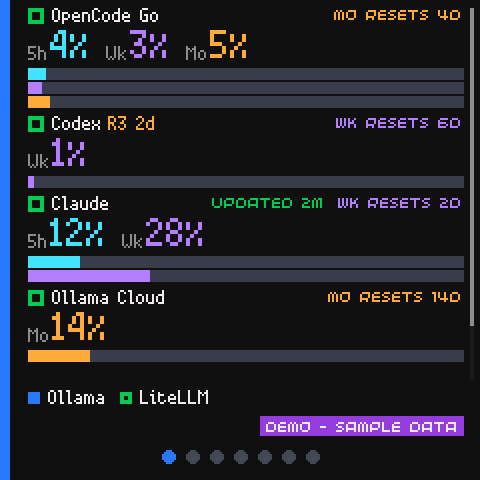
The Home screen lists every service in your saved order. Swipe to a card for one service in detail, or tap a row to jump straight to its card. You can try it without a Presto: see it running in your browser, on sample data.
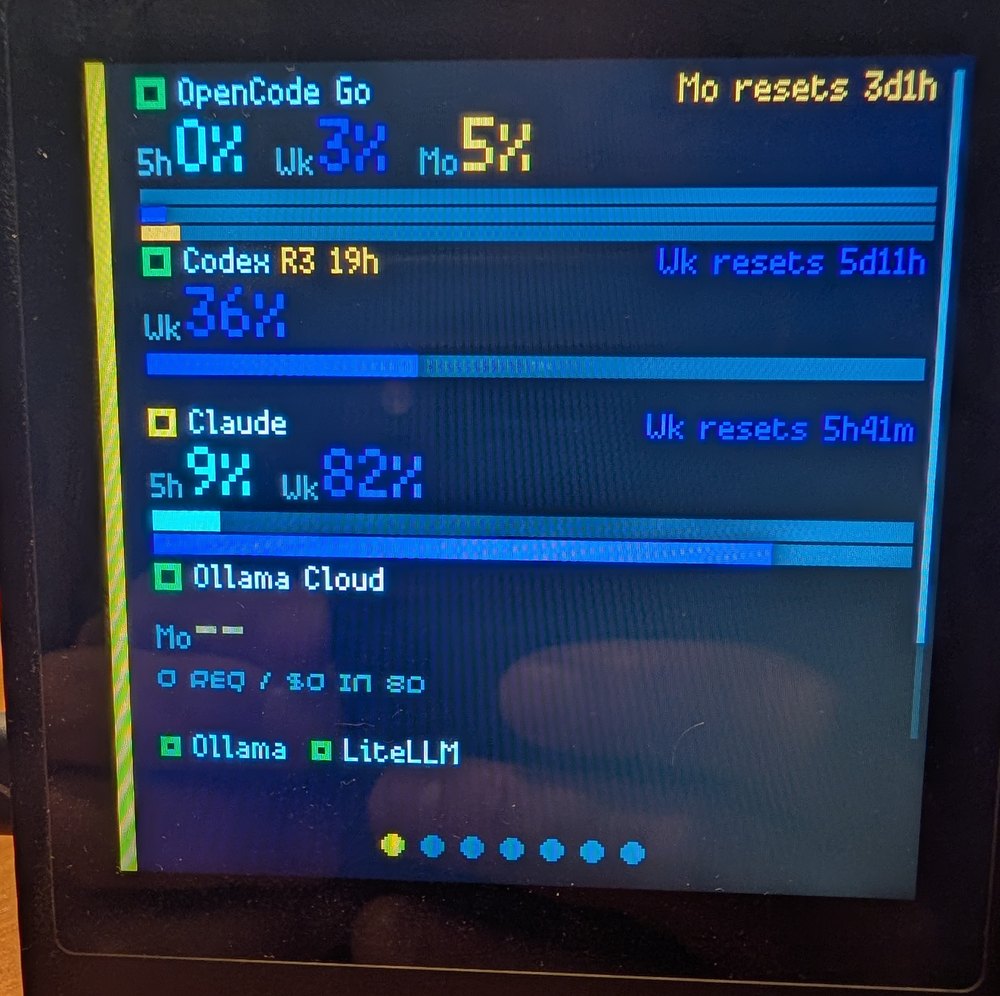
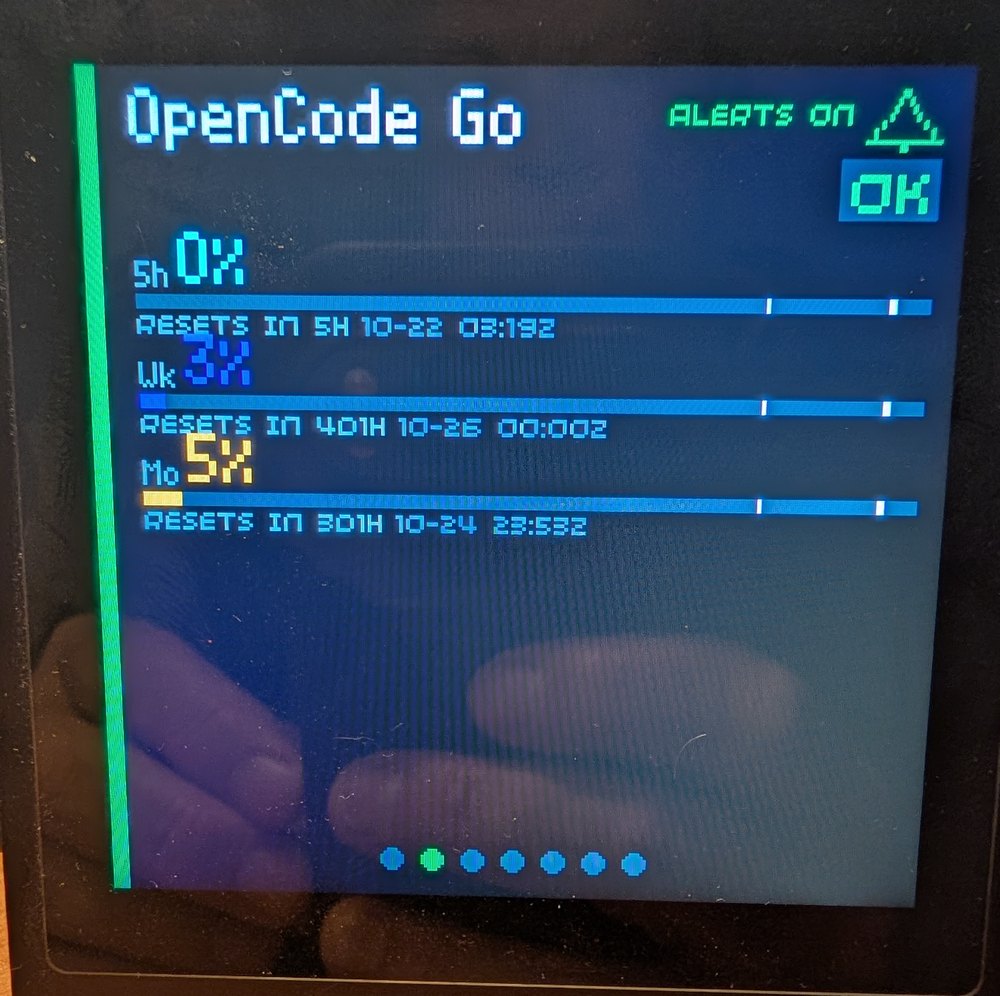
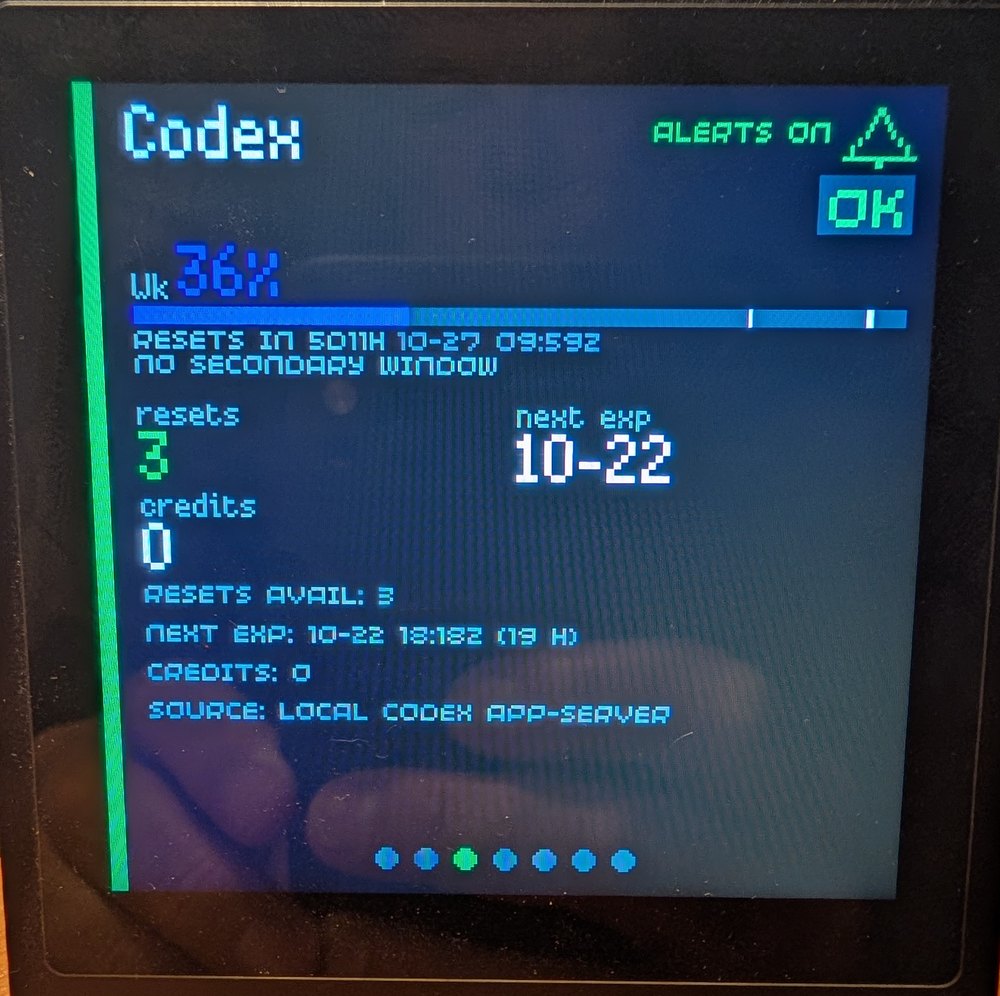
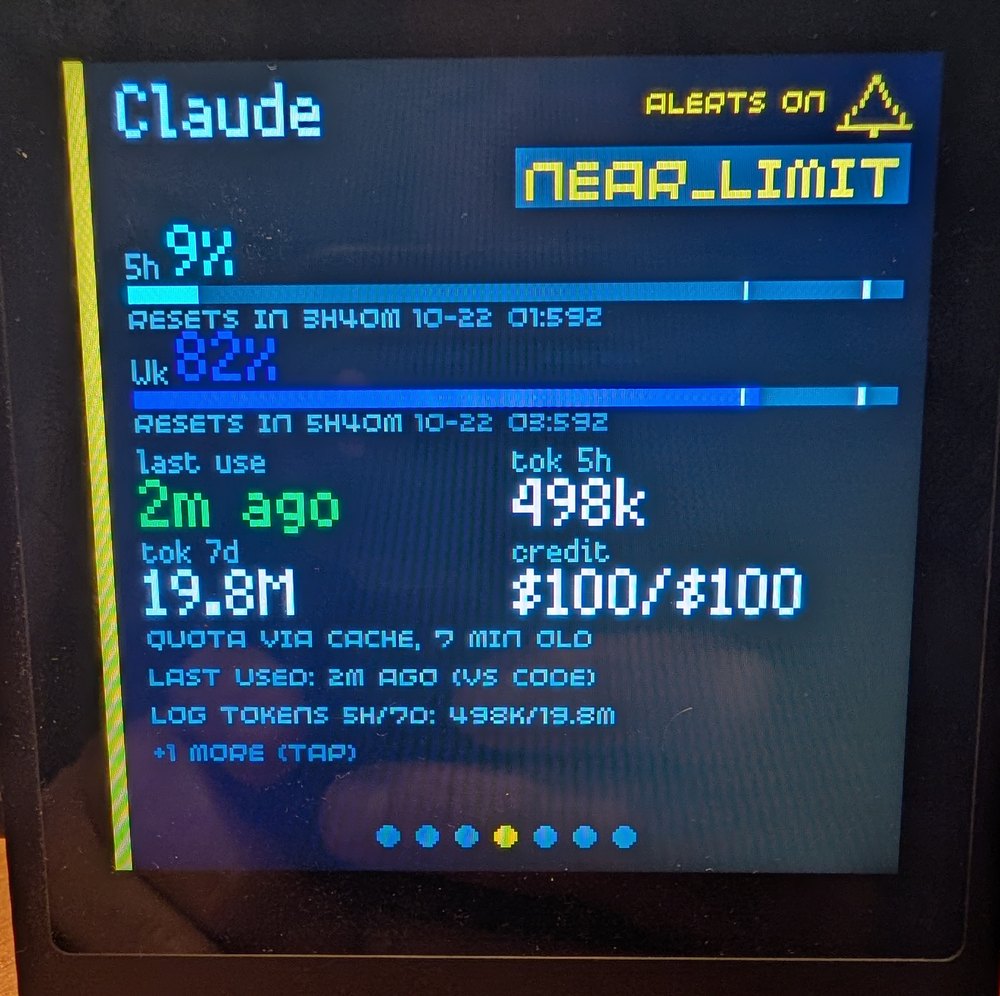
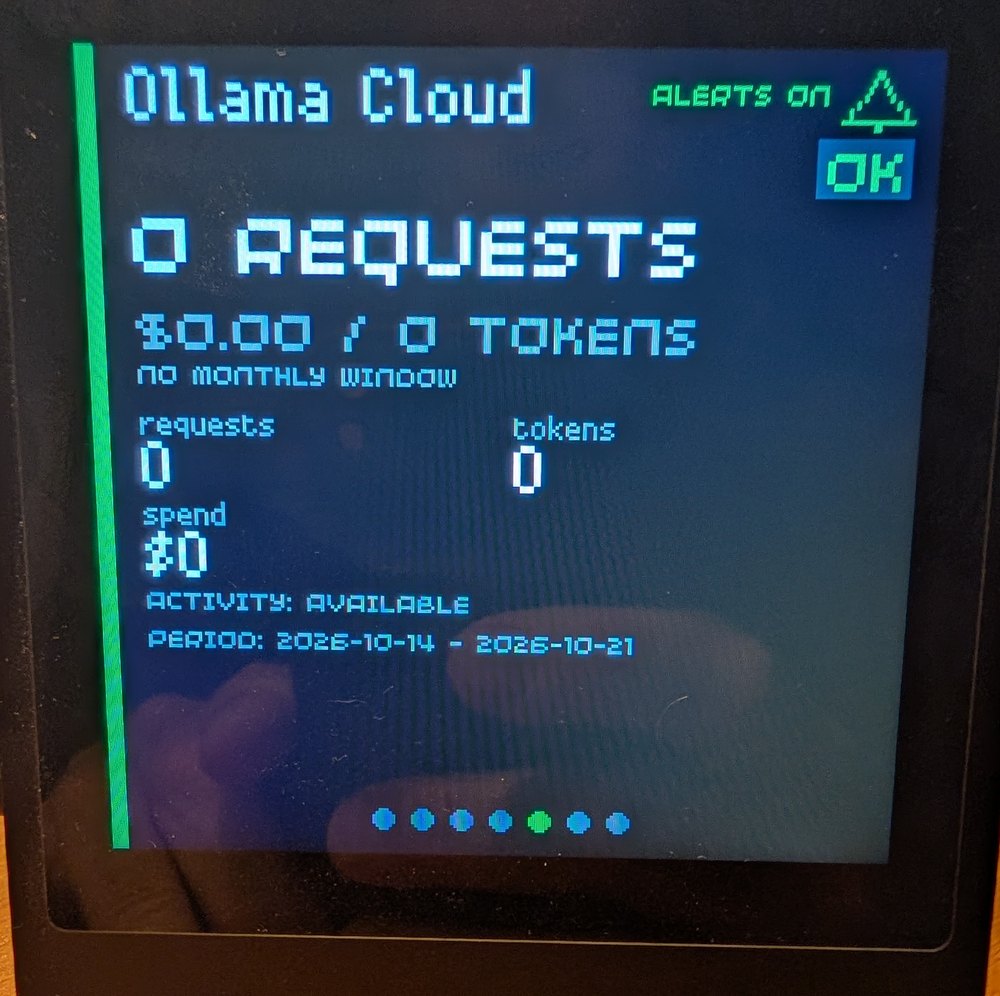
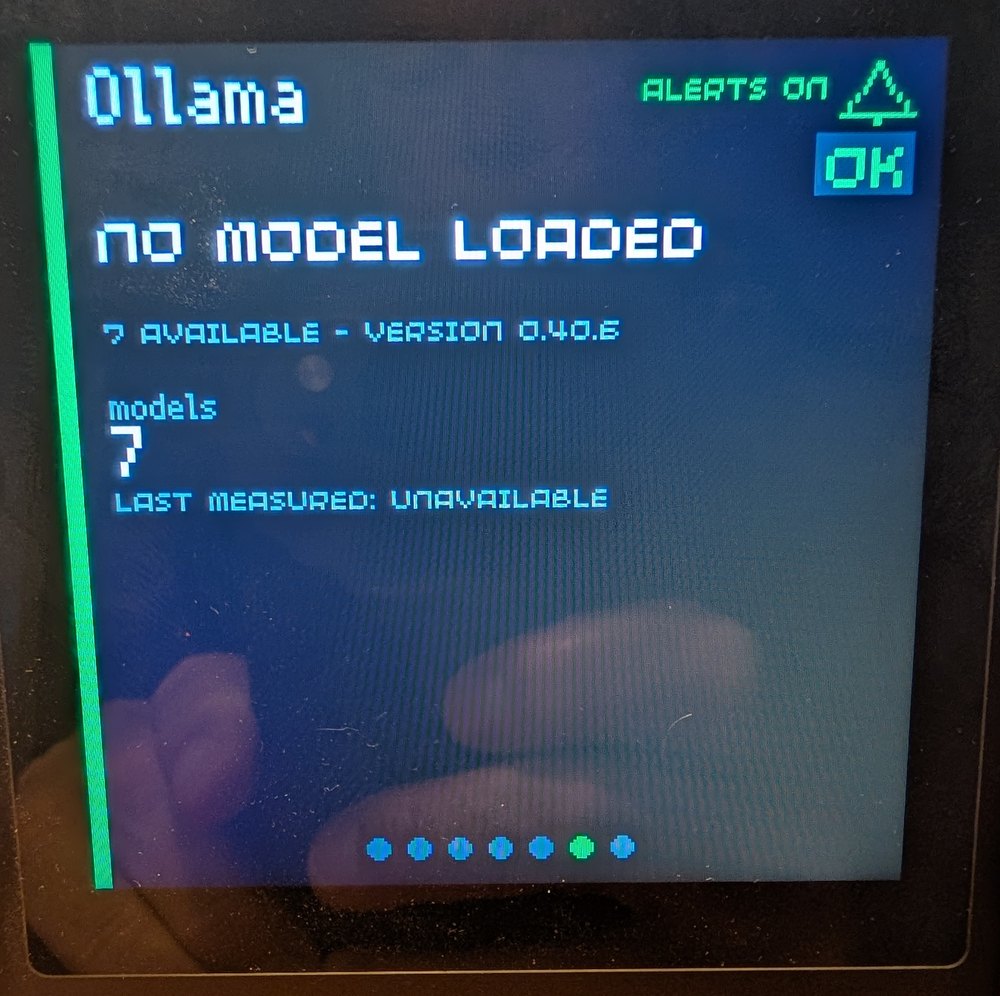
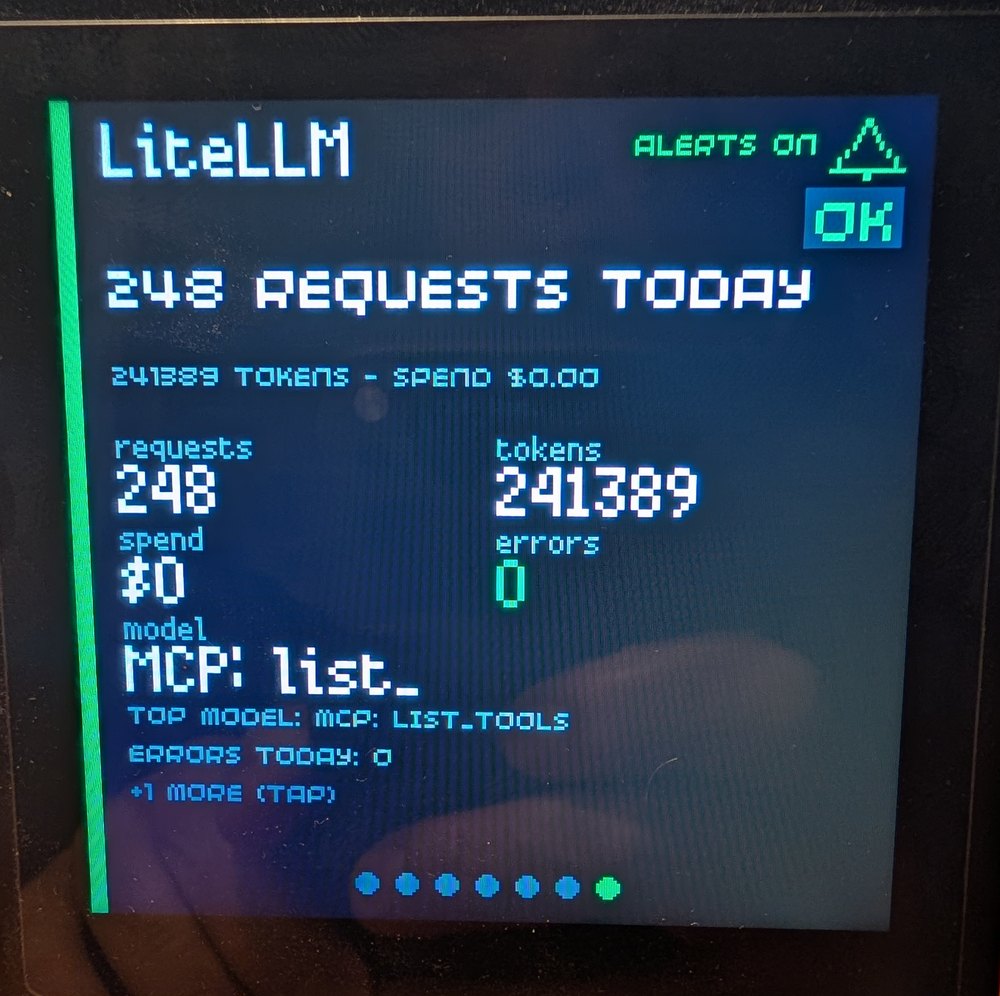
These are photographs of a real Presto, so reflections and the camera's colour rendering show; the display itself is sharper and its purple is more purple.
The two halves
| Piece | Where it runs | What it does |
|---|---|---|
| The daemon | A computer on your LAN (Windows, macOS or Linux) | Collects from the sources you configure, normalises the readings, keeps a short history, serves one JSON endpoint |
| The Presto app | On the Presto itself | Polls that endpoint, draws the Home list and one card per service, drives the LED and the sound |
The split exists for two reasons. The Presto has very little memory and no way to hold a provider key safely, so it is given nothing but a display and a single URL. The daemon has the network access, the storage and the credentials, so it does the reading.
  +--------------------+
  |   Pimoroni Presto  |   MicroPython app, 240x240 screen
  +--------------------+
        |  GET /api/v1/status  (bearer token)
        v
  +--------------------+
  |   Python daemon    |   your sources, your keys, your SQLite
  +--------------------+
        |  reads only
        v
   Claude, Codex, OpenCode Go, Ollama Cloud, Ollama, LiteLLM
What you see on the device
Home is a list of your accounts in the order you saved them. Each row
carries a status marker, the account name, the key numbers and, for quota
accounts, one coloured bar per allowance window with the real period label
(5h, Wk, Mo). Accounts that do not fit on the screen move to a thin
strip at the bottom.
One card per service, reached by swiping left and right. A card shows the biggest number, the window bars, the reset countdowns and a status chip. Some cards have more detail behind a second tap.
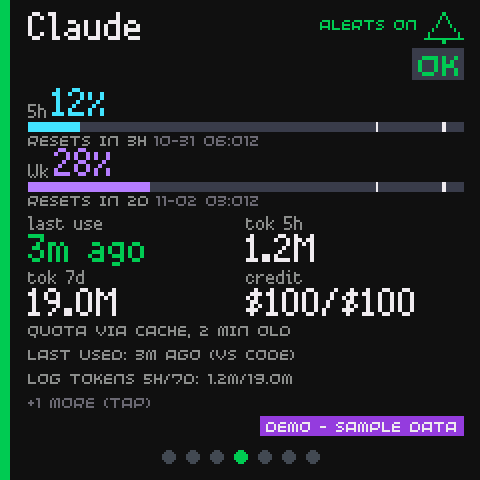
The LED shows the worst service on the dashboard: red for critical, rate limited or offline, yellow for a warning, blue for a service in use, green for everything else. The buzzer chirps once when a service gets worse and twice when it becomes critical, rate limited or offline.
What it collects
| Kind | Example | How |
|---|---|---|
| Quota windows | Claude 5h 12%, weekly 66% | A read-only HTTP call, a local file, or a report pushed from another machine |
| Activity totals | LiteLLM 12 requests today | A read-only HTTP call |
| Local health | Ollama reachable, llama3 loaded | A read-only HTTP call |
| Local use | Claude used 3 min ago | A local session log, read for timestamps and token counts only |
| Banked credits | 3 resets available | The provider's own allowance response |
Nothing is ever measured by asking a model to do work. The daemon never sends a prompt, never starts a paid request, and never buys, spends or resets anything.
What it deliberately does not do
- No analytics in the app. There is no telemetry, no counter and no crash reporting. Only the documentation website you are reading counts page views, with Google Analytics; see Privacy.
- No cloud service. There is no account to create and no vendor to sign up with.
- No request history for services that do not keep one. Ollama exposes no request log, so the dashboard reports reachability and the last measured speed, and says "unavailable" when nothing was measured. It never guesses.
- No zero for an unknown. A missing or expired reading shows
--or a dimmed value, never0%.
Where to go next
- Install the daemon
- Set up the Presto
- Add the first source
- Sources and quotas, for the vocabulary.